Argo CD Workspace
Follow GitOps status into the resources behind it, inside the native macOS workspace.
Kubernetes CRD browsing is part of Krust Free. The Argo CD API workspace below, added in 1.6, is part of Krust Pro (a trial is available). See the 1.6.0 release notes.
Choose the connection mode
Open Settings → Argo CD and choose the application source. The two modes have different identities and permissions:
| Mode | Connection and permissions | Use it for |
|---|---|---|
| Kubernetes CRD Free | Your selected kubeconfig context and Kubernetes permissions | Browse Applications, ApplicationSets, and Projects in that cluster without a separate Argo CD login. |
| Argo CD API Pro | A saved HTTPS server profile and Argo CD session | Use the native application workspace, resource trees, live/desired comparison, logs, and history without requiring a local kubeconfig for the destination cluster. |
Switching the Kubernetes context does not select an Argo CD API server. Check the server selector in the Applications toolbar. A denied API operation does not fall back to a Kubernetes patch.
Connect an Argo CD server
- Select Argo CD API in Settings (shown as Argo CD API · Pro until Pro or a trial is active) and add a server profile with its HTTPS URL, including any ingress base path.
- If the server uses an internal certificate authority, configure its CA certificate. Keep certificate and hostname verification enabled.
- Choose Sign in with account for a local account, or Sign in with SSO for a supported browser flow.
- Open Applications in the main sidebar and verify the selected server before inspecting an application.
Session credentials are stored in macOS Keychain. Local-account passwords are not saved. Browser SSO supports Dex or direct OIDC public clients with authorization code and PKCE; the identity provider must allow the configured localhost callback. Local-account sessions require sign-in again after expiry.
Read state before choosing an action
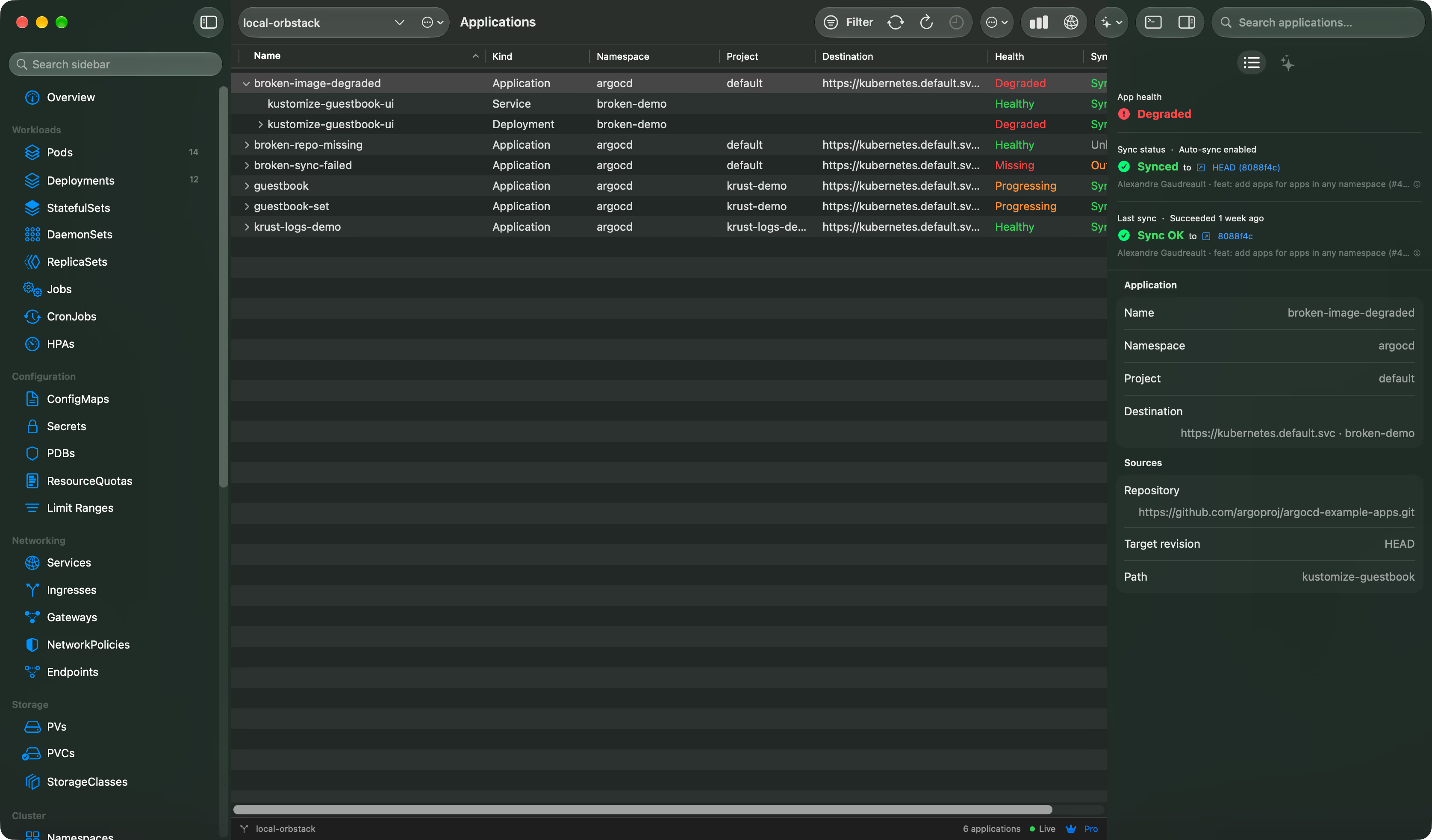
- Applications: search and sort by application state; expand a row to follow its resource tree. Select an application to inspect health, sync, last operation, destination, and sources.
- Resources: open an application to inspect its managed resources and their status. Follow parent/child relationships without treating every object as a separate search.
- Manifests and diff: open manifests in persistent document panels and compare live with desired state before deciding whether to sync.
- Logs: inspect Pod/container output associated with the application. Argo CD API log streams use their own bounded buffer; they are not the same as the Kubernetes log viewer's 100,000-line buffer.
- History: inspect retained deployment records and source configuration before considering an eligible rollback.
Actions are explicit
Sync, selective sync, and rollback open confirmation flows. Review the application, resources, revision, and options before proceeding. Pruning can remove resources and is opt-in. Advanced sync options include dry run, apply-only strategy, and retry settings.
Selective sync does not run hooks or create a normal history entry, and cannot be rolled back from that history. Use a full application sync when hooks are required. See Argo CD's selective sync documentation.
Rollback uses a retained history record. It is blocked when auto-sync or an active operation makes it ineligible; Krust does not disable auto-sync for you. Terminating an operation does not undo changes already applied. Prefer a durable Git change when correcting desired configuration.
While the Applications workspace is active, the Application menu in the macOS menu bar offers Sync Application…, Refresh Application (Cmd+R), Show History, Reconnect Updates, and Terminate Operation….
Reconnect and troubleshooting
- No applications: check the selected server, source mode, account permissions, and search filter.
- Local OrbStack endpoint unavailable: if your profile uses a localhost port-forward, that forward must remain active.
- Stale state: Argo CD reports its observed state, including reconciliation delay. Reconnecting updates and refreshing an application serve different purposes.
- Authentication or permission error: sign in again or ask an administrator for access. Switching to another source is not an automatic permission workaround.