Port Forwarding
Forward ports from any Kubernetes resource with one click — no terminal commands, no manual cleanup.
Overview
Port forwarding lets you access a service running inside your cluster on your local machine. This is essential for debugging, testing APIs, connecting to databases, and accessing admin dashboards that aren't publicly exposed.
With kubectl port-forward, you have to remember the exact command syntax, keep a terminal open, and restart the forward every time it drops. Krust replaces all of that with a visual interface that manages connections automatically.
Official Kubernetes reference: kubectl port-forward.
Best fit: use Free for normal forwarding and saved profiles you start manually. Use Pro when you need multiple DNS mappings and want last session's forwards back in one step.
Quick Start
- Navigate to any resource that exposes ports — Pods, Deployments, StatefulSets, DaemonSets, or Services.
- Right-click the resource and open the Port Forward submenu, or select a Pod and press Shift+F.
- Krust reads the resource spec and lists the declared ports. Pick one, or choose Custom Port… (Pods, Deployments, StatefulSets, and DaemonSets) when the declared ports are missing or wrong.
- In the sheet, choose the Route — DNS hostname when Local Routing is set up, or localhost with a local port (or accept the suggested one) — and optionally turn on Open in browser when ready.
- Click Start. The connection opens immediately and, if enabled, your browser launches to the forwarded address.
Active port forwards appear in the macOS menu bar, in the toolbar's Port Forwards button, and in the Port Forwards sidebar view, where you can stop or restart them from one place.
Features
Smart Port Detection
Krust reads container port definitions directly from the resource spec. When you initiate a port forward, the available ports are pre-populated — no need to look up port numbers manually. Named ports are displayed alongside their numbers for clarity, and Services whose target port is a name (for example http) connect to the matching container port.
Auto-Open Browser
For HTTP services, Krust can automatically open your default browser pointed at the forwarded address as soon as the connection is ready. This is especially useful for web UIs, dashboards, and API documentation endpoints.
Auto-Reconnect
Network interruptions, pod restarts, and cluster hiccups happen. When a port forward drops, Krust detects the disconnection and re-establishes the tunnel automatically. No manual intervention required — the connection simply recovers.
When forwarding from a Service or workload (Deployment, StatefulSet, DaemonSet), Krust automatically re-resolves to a new backing pod if the original pod is evicted or restarted. It uses the service selector or workload labels to find a healthy replacement, retrying with backoff for up to 30 seconds. Direct pod forwards reconnect to the same pod on transient network failures.
Reopen Last Session Pro
Saving port-forward profiles and starting them one by one is part of Krust Free. On Pro, Krust offers the forwards you had running when it opens again: click Reopen and they all start, or use Start All Saved in the Port Forwards view. Krust never opens a tunnel on its own at launch, so nothing connects to a cluster until you ask.
A forward that fails to start stays in the list as Failed with the reason. Right-click it and choose Retry.
Multiple Concurrent Forwards
Run as many port forwards as you need simultaneously. Forward your database on one port, your API on another, and a monitoring dashboard on a third — all managed from a single interface.
Port-Forward Profiles Free
Save frequently used port forwards as reusable profiles for quick access. Profiles store resource identity and port mapping, so recurring dev tunnels can be restarted in one click. Reopening a whole session in one step is the Pro feature above.
Connection Status Tracking
Every forward in the Port Forwards view shows a real-time status dot:
- Green — the tunnel is active
- Yellow — the connection is being established
- Orange — the forward is stopping or being cancelled
- Gray — a saved forward that is not running
The view also shows open connections and bytes sent and received for each forward. If a forward fails, Krust shows a Port Forward Error alert with details on what went wrong.
Menu Bar Controls
Active port forwards are accessible from the macOS menu bar. You can see all running forwards at a glance and stop or restart any of them without switching away from your current view.
Individual Stop & Start
Each port forward can be stopped and started independently. Pause a forward you don't need right now without tearing down everything else. Resume it later with the same configuration.
Why VPN Is Needed
Cluster internal addresses like *.svc.cluster.local are not normal public domains, so your Mac cannot open them directly by default.
Krust uses Apple Network Extension plumbing so those internal cluster addresses can work naturally in your browser and local tools. This is local Kubernetes networking support, not a traditional internet VPN.
- Without VPN: You can still use
localhostlinks. - With Krust networking enabled: You can open friendly cluster-style hostnames directly.
- You stay in control: Local Routing can be set up or turned off in Settings › Local Routing.
DNS Proxy Workflow
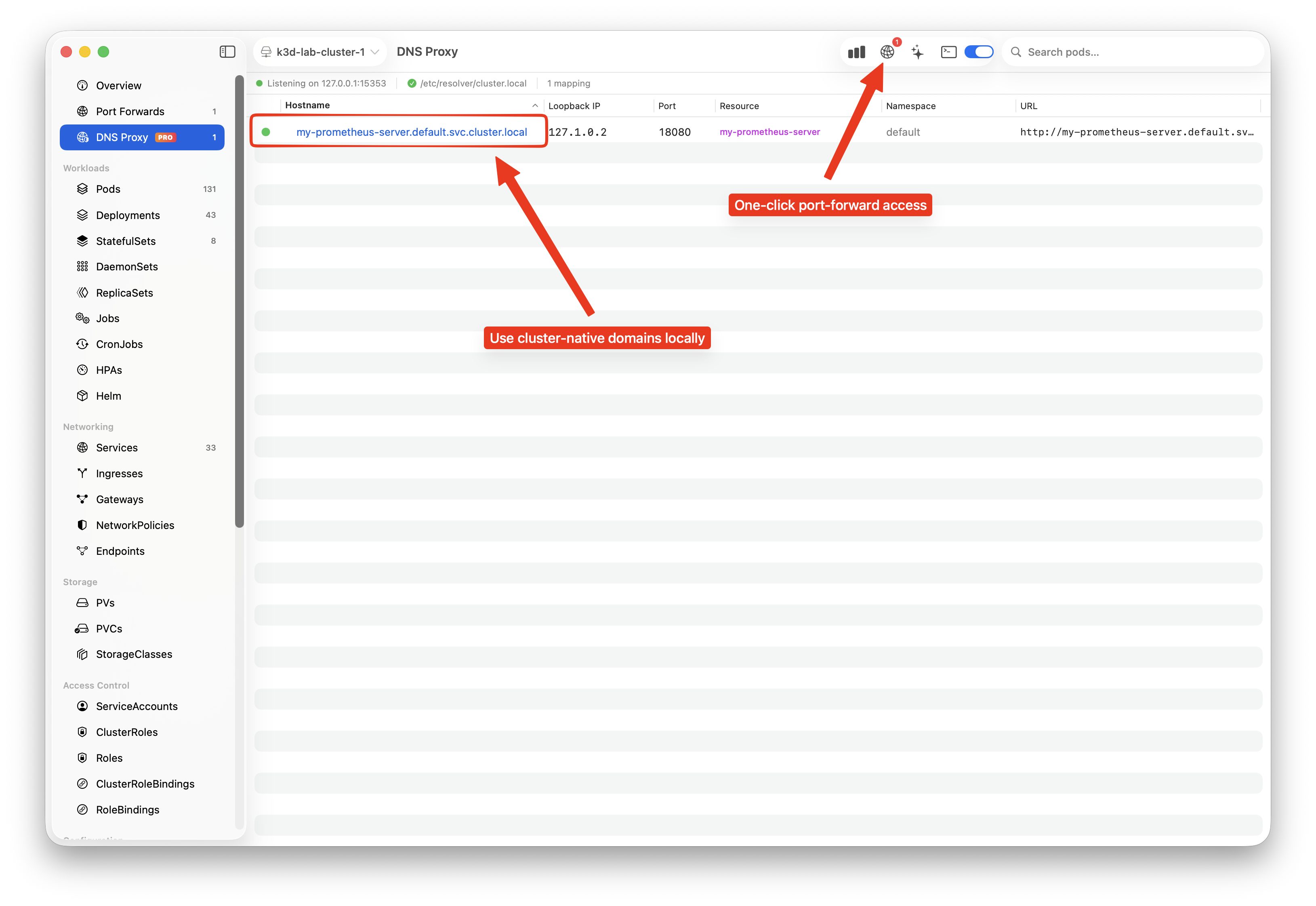
When Local Routing is enabled, Krust lets you use *.svc.cluster.local hostnames locally, so links are easier to read and share.
Under the hood, Krust uses a Transparent Proxy network extension (listed in System Settings as Krust Packet Tunnel) with scoped DNS settings for svc.cluster.local, cluster.local and short .svc names, then relays those lookups to a local DNS listener backed by the app's active mapping snapshot. Public DNS stays on the normal macOS resolver path and is not forwarded by Krust.
Plan limits: Free includes 1 active DNS mapping at a time. Pro unlocks multiple concurrent DNS mappings. On Free, a second DNS forward runs on localhost instead. A forward also falls back to localhost when another cluster already uses the same hostname and port.
In Settings › Local Routing, you can verify whether Local Routing is active, whether the DNS Listener and Transparent Proxy components are healthy, and which cluster-local mappings Krust is serving.
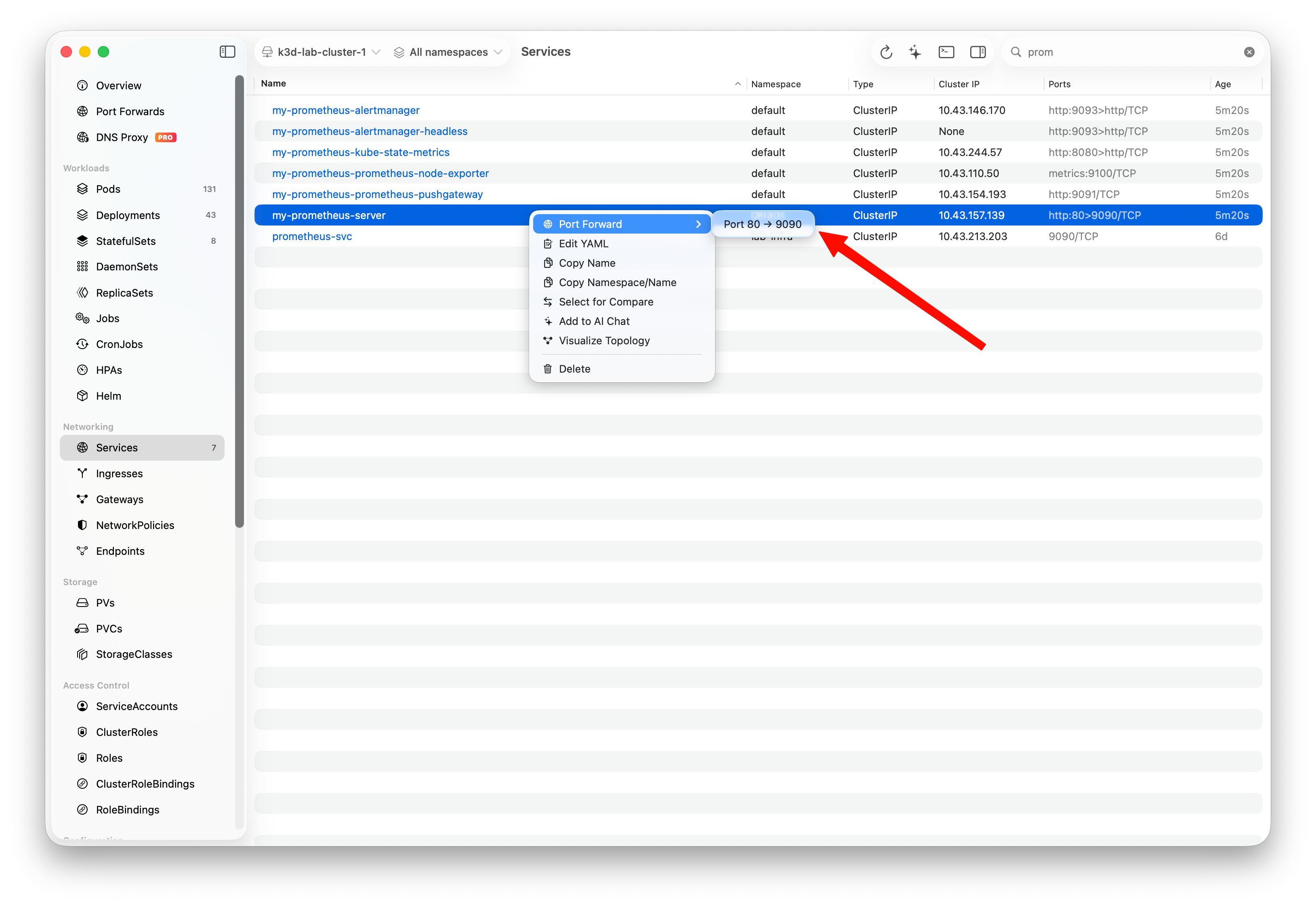
For common web ports like 80 or 443, Krust may use a safe local fallback port automatically when needed.
Mappings are tracked by service hostname and service port, so one forwarded hostname can safely serve multiple ports without one route overwriting another.
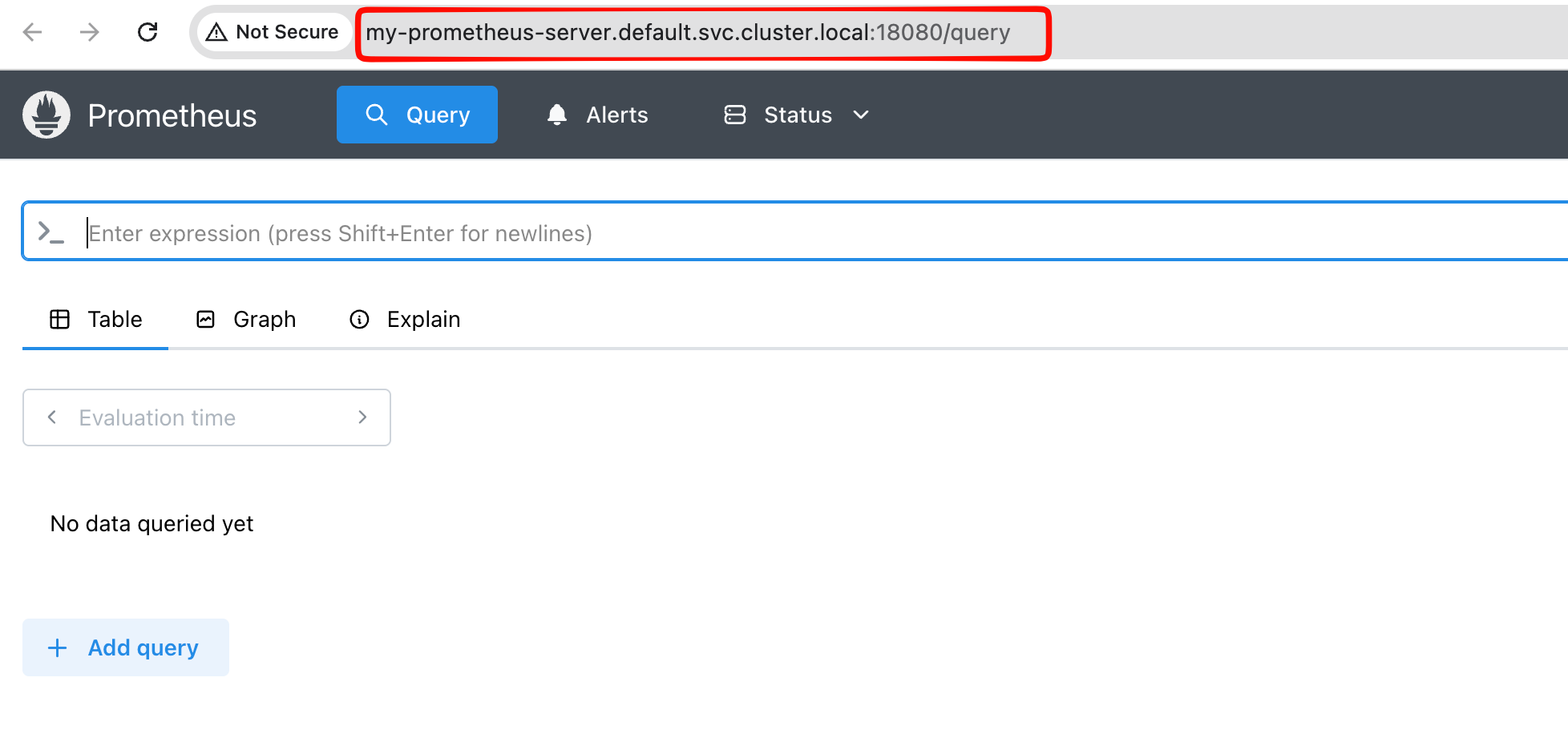
You can verify active hostname-to-loopback mappings in the Local Routing sidebar view, including the resolved hostname, VIP, service port, and local URL currently in use.
Krust vs. kubectl port-forward
| Capability | Krust | kubectl port-forward |
|---|---|---|
| Start a forward | Right-click, select port, done | Type full command with namespace, resource, and ports |
| Port discovery | Ports auto-detected from spec | Look up ports manually |
| Reconnect on drop | Automatic | Command exits, restart manually |
| Survive app restart | Pro profiles restore automatically | Gone when terminal closes |
| Saved profiles | Save and restart with one click (Free); reopen the whole last session in one step (Pro) | Shell aliases or scripts |
| Multiple forwards | Managed in a single panel | One terminal window per forward |
| Status visibility | Live status indicators and menu bar | Terminal output only |
| Browser integration | Auto-open on connect | Open browser manually |
Tips
- Database access — Forward your PostgreSQL or MySQL port and connect with your favorite database client. Save it as a profile so you can restart it in one click after a cluster switch.
- Microservice debugging — Forward multiple services at once to reproduce a full request flow locally. The status indicators help you confirm all tunnels are up before testing.
- Dashboard access — For web UIs like Grafana, Kibana, or custom admin panels, enable auto-open browser so the dashboard appears as soon as the forward is ready.
- Service-level forwarding — Forward from a Service rather than a specific Pod when you want the tunnel to survive pod restarts and rescheduling. Krust handles the underlying pod resolution automatically.