Native Workspace & Search
Keep your investigation open while moving between resources.
This guide covers the workspace introduced in 1.6 and the search, split, and toolbar changes in 1.7.
Sidebar filter and toolbar search
| Control | What it searches | How to use it |
|---|---|---|
| Sidebar filter | Navigation entries and custom resource groups | Click the field at the top of the sidebar to find a resource kind. It does not filter the resource table. |
| Toolbar search | What you type decides | Click the toolbar field or press Cmd+F. The prefixes are listed below. |
The toolbar search does one thing at a time, chosen by its first character, like Quick Open in VS Code:
| Type | What it does |
|---|---|
Plain text or key:value | Filters the current resource list. Supported views accept structured filters. |
> | Goes to a tab: resource tabs plus Overview, Port Forwards, Local Routing, and RBAC Who Can. Cmd+K opens the field with > already typed. |
@ | Switches cluster. |
? | Lists the prefixes. |
Deleting the prefix returns the field to filtering. Each tab keeps its own filter, and the field shows that filter again when you come back to the tab. Changing context or resource tab dismisses toolbar search focus and suggestions without clearing the stored filter. Routine data updates do not interrupt typing. When an editor or log viewer has focus, Cmd+F searches that document or log stream instead.
Keyboard actions follow the focused control. In a resource table, Delete acts on the selected resources; it is not a shortcut for clearing a search field. Click the intended field before editing its text.
Split panes
Drag a view from the sidebar onto the workspace to open it in a split: drop on the right half to split right, or on the bottom half to split down. You can also right-click a resource row and choose Open in Split → Right or Down.
The toolbar keeps the same buttons on every tab. Buttons that don't apply to the current view are dimmed instead of disappearing, so switching tabs doesn't rearrange the toolbar.
Persistent logs and documents
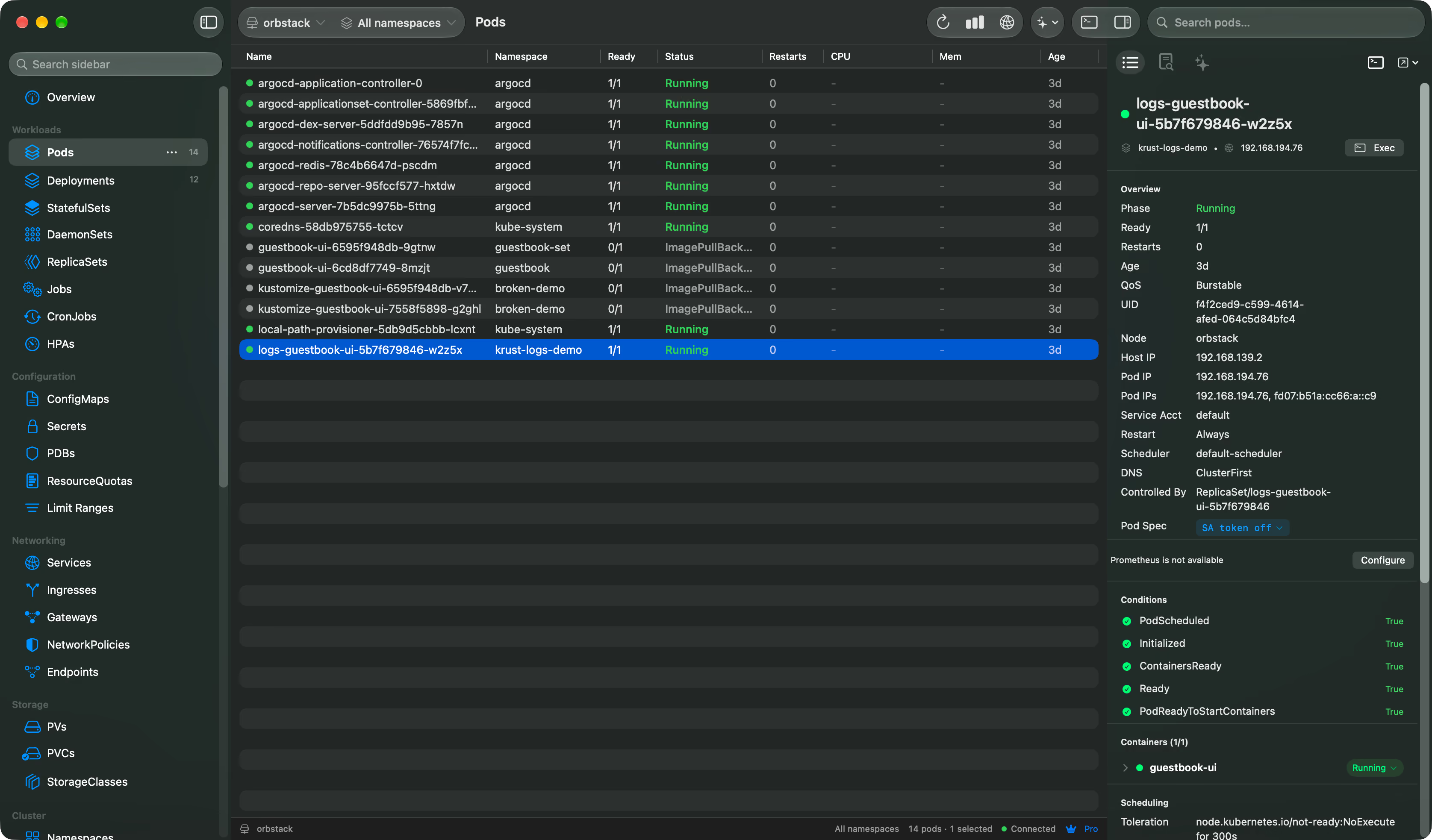
Open logs into the bottom panel and keep the resource table above them. Detach a log session into a separate window when you need more room, then return it to the panel. The session retains its own search, selection, and scroll state.
Argo CD manifests also use persistent document panels. Keep a manifest available while moving through the application resource tree, or detach it for a larger comparison. These panels complement the standalone Kubernetes YAML editor; viewing a manifest does not apply it.
Inspector and status
The Agent inspector is shared at workspace level. Changing resource tabs, panes, context, or sidebar search does not reset the conversation. Resource inspection remains separate from Agent conversation state.
Check the workspace status bar for context and visible-resource information. In Argo CD API mode, the server profile is separate from the Kubernetes context; verify the intended server in the Applications toolbar.
Tables that read like their values
CPU, memory, Ready counts, and age sorting use underlying values rather than formatted strings. For example, memory quantities are compared by size rather than alphabetically. Missing metrics remain last instead of appearing to be zero usage.
The PVC table adds a Pods column for claims referenced by Pods. Multiple references appear as a compact summary with the full list in a tooltip. An ellipsis means usage is still loading; a dash means no referencing Pod was found in the loaded scope. This is a reference view, not disk-utilization measurement.