Connect Google Cloud and GKE
Use your Google account and an explicit project ID to discover GKE clusters from Krust. No gcloud install and no downloaded kubeconfig are required for this managed connection workflow.
Pro capability: Google Cloud sign-in and GKE discovery are part of Krust Pro. Any Google account can sign in. Existing and imported kubeconfigs stay Free.
What this capability does
| Workflow | Free | Pro |
|---|---|---|
| Use an existing or imported GKE kubeconfig | Yes | Yes |
| Sign in to a Google account from Krust | No | Yes |
| Enter a project ID and discover its GKE clusters | No | Yes |
| Choose an available DNS, public, or internal control-plane endpoint | No | Yes |
Before you start
- Use Krust 1.7.0 or later.
- Have a Pro license, or a Pro trial available. Selecting Google Cloud for the first time starts the 14-day trial automatically if you have not used it yet.
- Use a Google identity with
container.clusters.listfor the project ID you enter. - Ensure your Mac can reach the endpoint you choose. A private IP endpoint can still require your organization’s private network path.
Connect a GKE cluster
- Choose File → Add Cluster…, then select Google Cloud.
- Complete sign-in with your Google account. Krust requests identity and read-only GKE access.
- Enter one Google Cloud project ID—not its display name—then choose Find GKE clusters.
- Select one or more discovered clusters.
- For each cluster, choose an endpoint Krust reports as available: DNS, public IP, or internal IP.
- Choose Add 1 Cluster (or Add N Clusters). The cluster appears in Connection Center and the normal context picker.
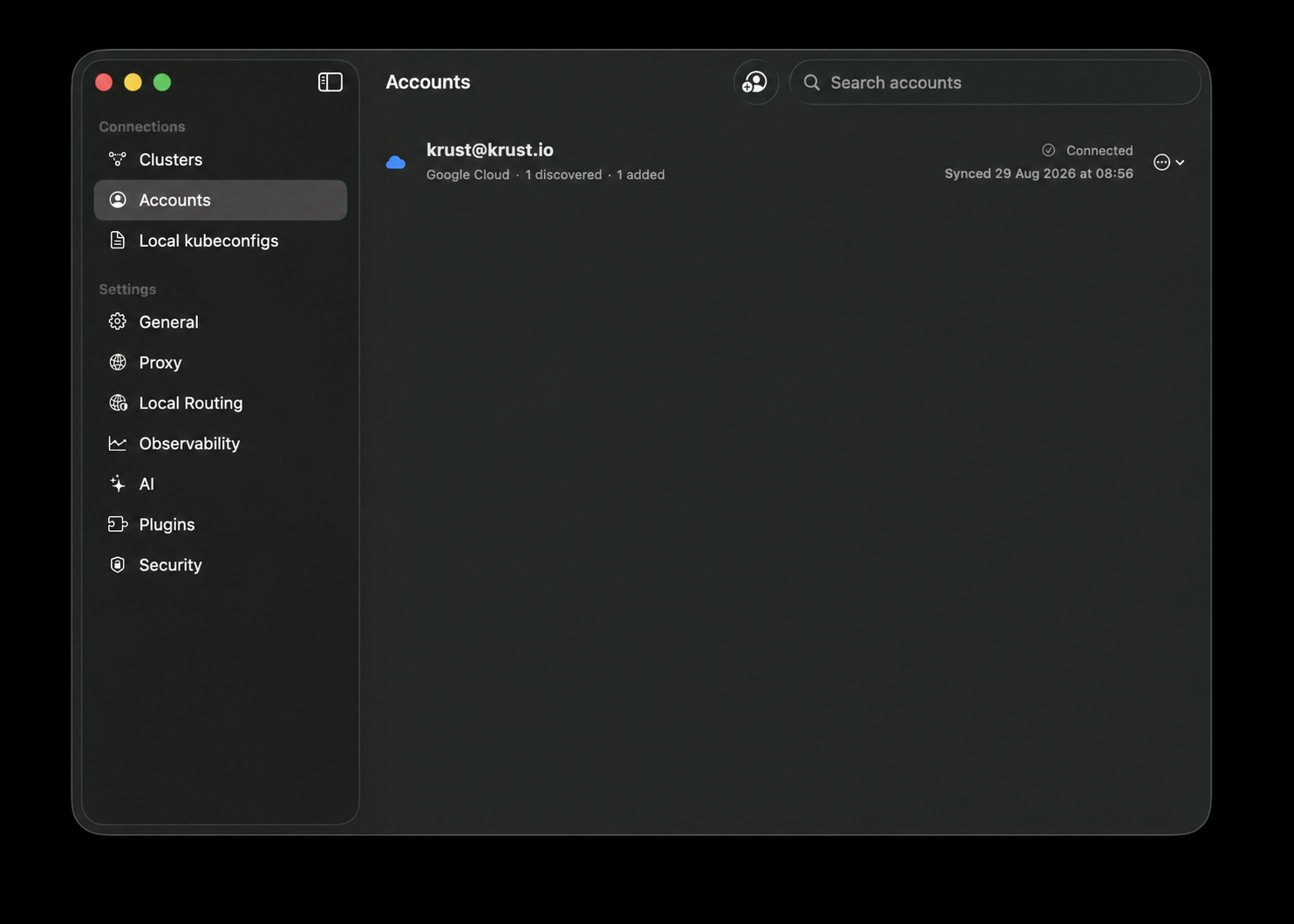
Krust uses the GKE REST list endpoint across locations, which is equivalent to asking GKE for the clusters in a selected project. Google documents that locations/- lists both zonal and regional clusters.
Endpoint choice is a network decision
Google documents DNS-based and IP-based control-plane endpoints. Its current networking guidance recommends the DNS-based endpoint when it fits your organization because access can be policy-based; public and internal IP endpoints remain useful when that is how your cluster is exposed. Krust lets you choose only an endpoint reported by the cluster, but it cannot create network reachability from your Mac.
- DNS: choose it when your organization has enabled DNS endpoint access and your identity and network satisfy the policy.
- Public IP: choose it only when the control plane’s authorized-network policy permits your Mac.
- Internal IP: choose it when your Mac has the required private-network route, such as a corporate VPN.
Credentials and ongoing access
The Google authorization flow uses the authorization-code flow with PKCE and a loopback callback. Krust retains the managed credential in macOS Keychain, refreshes access tokens for connected GKE sessions, and reconnects through the same account when you explicitly choose Reconnect. If Google revokes or expires the authorization, Krust asks you to sign in again. Disconnecting an account revokes Krust’s access at Google and removes Krust’s managed connection metadata and credential for that account; it does not delete a Google Cloud project or GKE cluster.
To require Touch ID (or your login password) before Krust uses the saved Google credential, turn on Require Touch ID to use saved Google Cloud and AWS credentials in Settings › Security. Krust then asks once per launch before the credential is used, and when needed to disconnect the account.
kubectl and the Krust terminal
GKE clusters added with Google sign-in work in the Krust terminal and in Claude Code sessions started from Krust. kubectl gets its credentials from Krust through krust kube-credential, so no token is written to disk and an expired token is refreshed on the next command. Pod shells for these clusters open in Krust’s built-in terminal even when Terminal.app is selected, because kubectl outside Krust cannot sign in to them.
Kubernetes resource access remains governed by the Google identity and the cluster’s existing Kubernetes and IAM authorization. A successful discovery result does not grant permissions that the account did not already have.
Troubleshooting
Google does not authorize the account
Confirm that you completed sign-in in the browser window Krust opened, with the Google account you intend to use. A Google Workspace administrator can block third-party apps for the organization; in that case ask your administrator to allow Krust. If it still fails, email [email protected] with your Krust version and the error text.
No clusters appear
Confirm the project ID—not the project display name—and the selected Google account. The account needs permission to list that project’s GKE clusters, and the GKE API must be available for the project.
The selected endpoint cannot connect
Return to the cluster options and choose another endpoint Krust reports as available. For private or restricted clusters, connect your corporate network path first. Do not weaken an organization’s authorized-network or IAM policy merely to make a desktop client connect.
Google reports redirect_uri_mismatch
This indicates a mismatch in Krust’s native OAuth client configuration, not a missing Kubernetes role in your Google account. Update to the supported Krust release and report the exact app version and error to support. Until it is resolved, you can still connect the same GKE cluster with an existing or imported kubeconfig on Free.